How to Turn Markdown into a More Accessible Word Document
A Word file can look polished and still be difficult to navigate with a screen reader, keyboard, or magnifier. Accessibility depends on structure: real heading levels, real lists, simple tables with header rows, useful alternative text, meaningful links, and a reading order that makes sense.
A dependable workflow is to preserve semantics in Markdown, convert it to an editable DOCX, and then inspect the exported file in Word. This guide explains what to prepare in the source, what to check after conversion, and how to fix the failures that visual preview alone will miss.
First decide: is the problem visual, or structural?
Visual problems involve fonts, spacing, margins, and template choices. Structural problems determine how assistive technology understands the document. A line can look like a heading because it is bold and large, while still being an ordinary paragraph that does not appear in Word’s Navigation Pane.
Microsoft’s Word accessibility guidance recommends built-in heading styles, alternative text for visuals, header information for data tables, and simpler table structures. WCAG 2.2 also covers text alternatives and meaningful headings, but WCAG is a web content standard; it is not, by itself, a certification of a DOCX file.
Microsoft’s Word accessibility guidance is a useful source for turning these principles into a repeatable review list.
Step 1: Build a navigable structure in Markdown
A converter can only preserve what the source expresses clearly. The more explicit the Markdown structure, the easier the resulting Word file is to edit and inspect.
Keep heading levels in order
Use H1 for the document title, H2 for main sections, and H3 for subsections. Do not jump to H4 just to make text smaller or larger, and do not turn a paragraph into a heading for visual emphasis. W3C’s page-structure guidance recommends avoiding skipped heading levels because readers may navigate a document by its heading list.
# Document title

## Scope

### Out of scope

## Review steps
Make lists, links, and images carry meaning
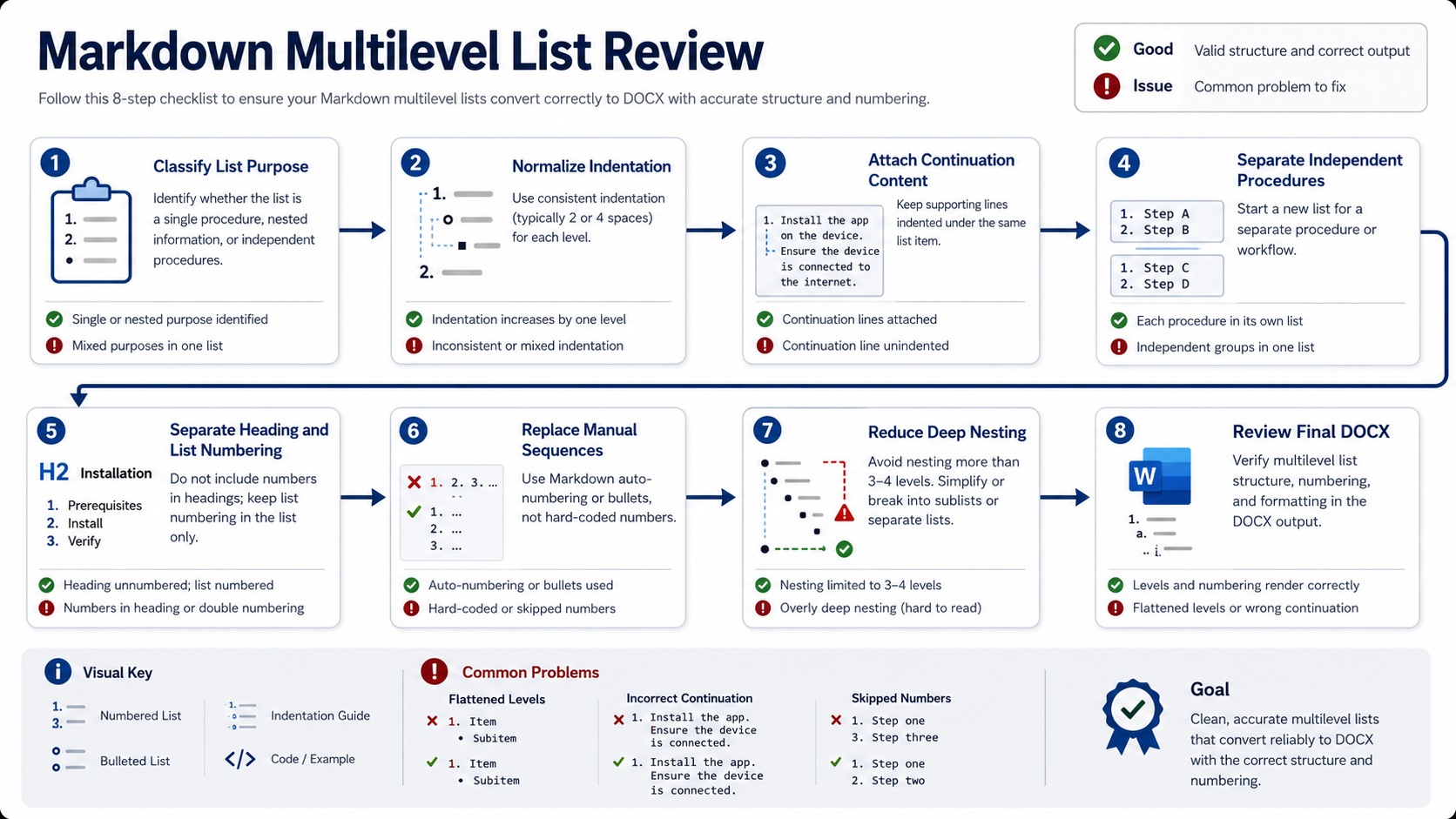
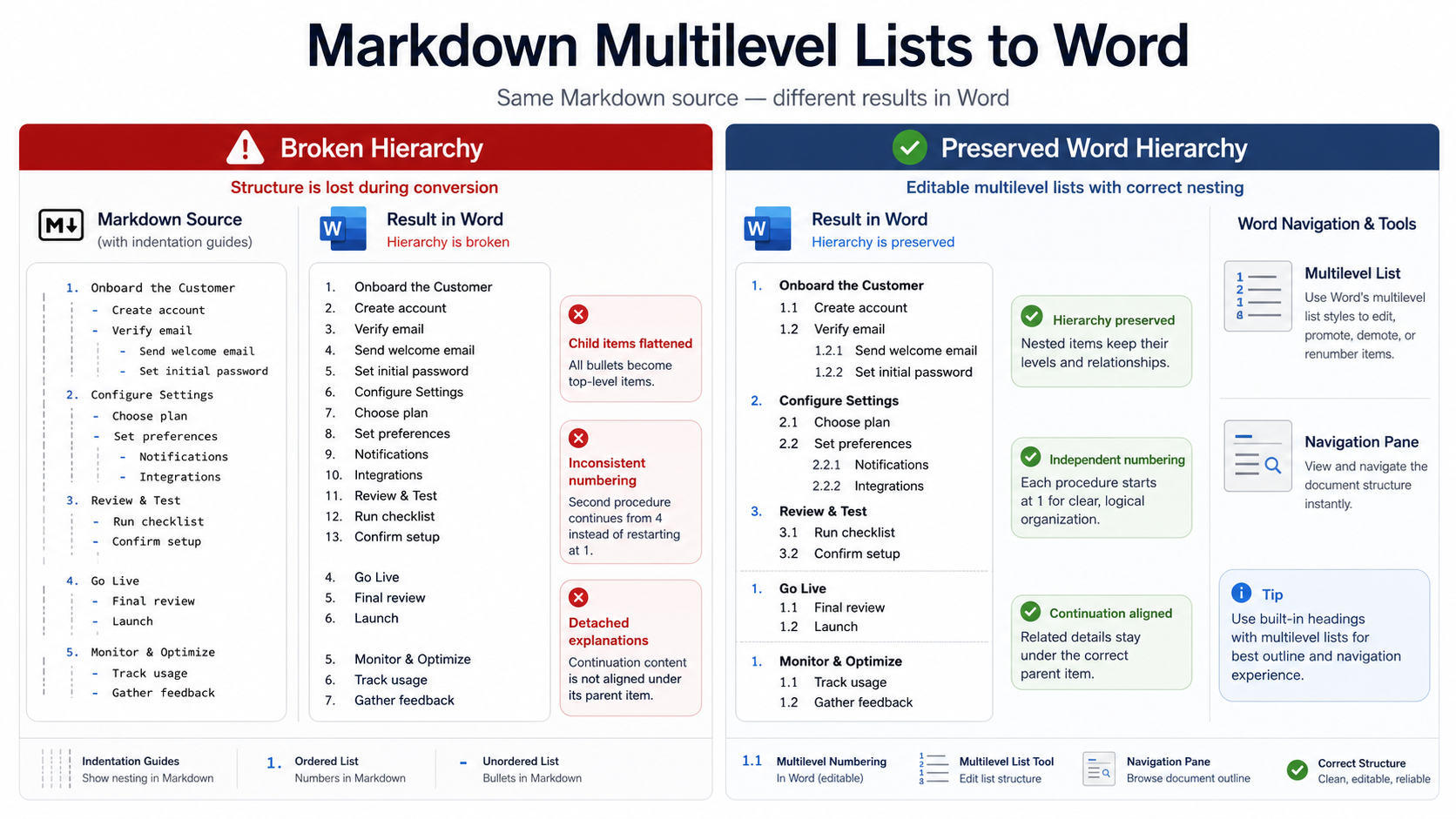
- Use ordered lists for sequence and unordered lists for peer items. Do not imitate nesting with hyphens and spaces.
- Use link text that names the destination, such as “download the acceptance checklist,” instead of “click here.”
- Give informative images alt text that describes their content and purpose. Mark decorative visuals as decorative.
- Do not communicate pass/fail status with color alone. Add words or an unambiguous symbol.
For example, this image syntax carries more useful information than a filename such as “image.png”:
Step 2: Convert for semantic preservation, not pixel-perfect similarity
Open the DocuCraftBox Markdown to Word workspace, paste or upload the Markdown, choose DOCX, and review the preview before downloading. The goal is not to make the Word page match a Markdown preview pixel for pixel. The goal is to keep headings, lists, tables, links, and images available as editable document content.
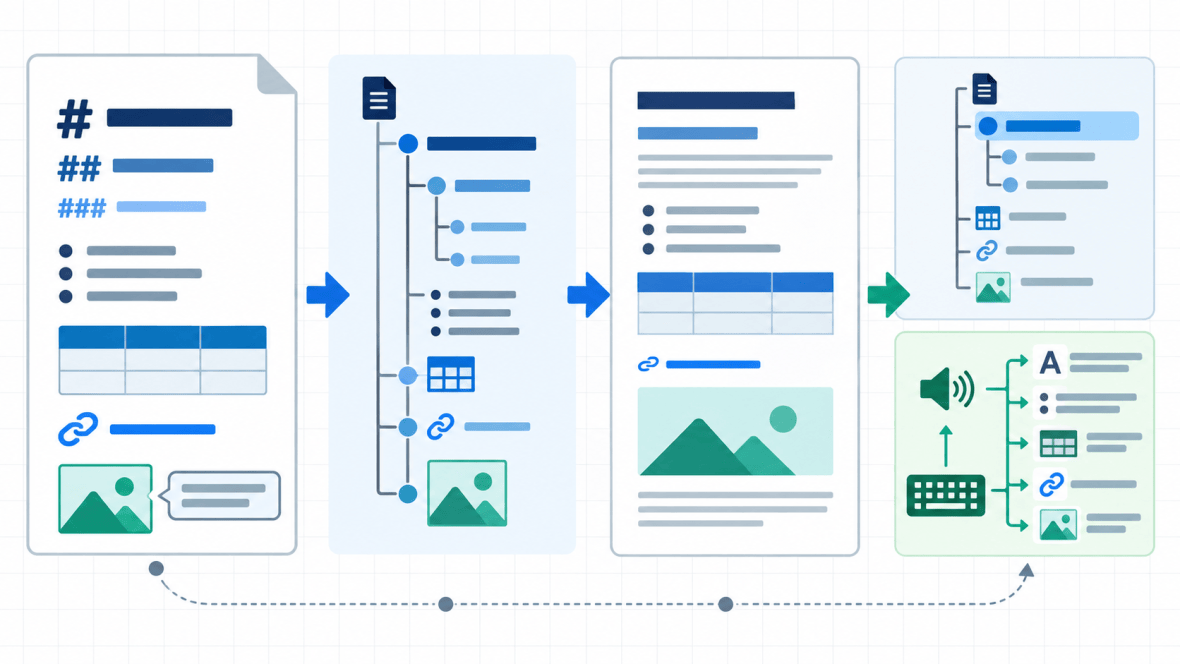
If the document uses local images, keep their paths relative and package the images with the Markdown. After conversion, open the DOCX in the target Word editor. Check that images, links, and navigation structure are still present instead of relying only on a browser preview. The DocuCraftBox supported-features reference lists the supported headings, lists, tables, images, captions, and related document elements.
Step 3: Run the accessibility review in Word
1. Confirm that headings are real navigation targets
Open Word’s Navigation Pane and inspect the outline. If a line looks like a heading but is missing from the outline, it may be ordinary text with visual formatting rather than a heading style. Apply a built-in Heading style and keep the hierarchy continuous instead of adjusting font size again.
2. Confirm that tables are simple and have a header row
A data table should have a clear first-row header. Avoid merged cells, nested tables, and blank cells used only for layout. Fixed-width tables are harder to read when users zoom or work on a smaller screen. If the content is not really tabular data, a titled paragraph or list is often easier to navigate.
3. Confirm that image alt text explains content and purpose
An image rendering correctly does not prove that its alternative text survived. Open the image’s alt-text pane and replace filenames or generic labels with a short description of what a reader needs to understand. Mark decorative images as decorative so a screen reader does not announce empty information.
4. Check link text, color, and reading order
Scan links and make sure their destinations are understandable out of context. If color communicates status, add text or another clear cue. Then move through the document with the keyboard from the title onward and check whether the focus and reading order follow the document’s logic.
When the manual pass is complete, open Review → Check Accessibility. The checker can surface missing alt text, missing table headers, and some structural problems. It cannot decide whether a chart description communicates the right conclusion, so human review is still required.
Common failures: why visual correctness is not enough
| Symptom | Likely cause | Fix |
|---|---|---|
| A heading looks prominent but is missing from Navigation Pane | Only font size or bold was changed | Apply a continuous built-in Heading style |
| A table looks fine but the checker reports a structure issue | No header row, or the table is being used for layout | Keep it as simple data and enable Header Row |
| An image displays but its meaning is unclear | Alt text was lost, too short, or left as a filename | Describe content and purpose; mark decorative images as decorative |
| The PDF export changes hierarchy or reading order | Only the visual output was checked | Review the PDF as a separate deliverable and verify its tags and reading order |
A repeatable delivery checklist
- The source has one document H1, with later headings advancing in order.
- Lists are real lists; link text names the destination; image alt text explains content and purpose.
- Tables carry data, have clear headers, and do not use merged cells as page layout.
- The DOCX opens in the target editor with usable navigation, images, links, and tables.
- Word’s Accessibility Checker has been run, followed by a keyboard and reading-order review for the actual audience.

FAQ
Is Markdown automatically an accessible format?
No. Markdown can express headings, lists, links, and alternative text clearly, but the final result depends on how the converter builds the DOCX and whether the exported file is checked.
Does every image need a long alt description?
No. Alt text should be concise and accurate, covering the content and purpose a reader needs. Decorative images should not add a distracting description.
Can an accessible Word document still use templates and color?
Yes. Accessibility does not mean removing design. It means building the design on real structure and avoiding color as the only way to communicate meaning. Apply built-in styles first, then adjust appearance.
If Word’s checker passes, is the document fully compliant?
No. The checker is a practical aid, not a complete certification for every audience, content type, or legal context. Important deliverables still benefit from a review by real users or an accessibility specialist.
Conclusion
The key to a more accessible Markdown-to-Word workflow is not extra decoration. It is preserving structure and performing a real acceptance check. Treat headings, lists, tables, images, and links as navigable information—not shapes on a page—and the DOCX becomes easier to share, review, and maintain.
For a source-level review of tables, images, code, and document structure, see the Markdown formatting guide, then open the Word workspace to create an editable DOCX.