How to Convert ChatGPT Markdown to Word Without Losing Formatting
Copying a response from ChatGPT into Microsoft Word looks simple until the document contains headings, tables, formulas, code blocks, images, or a table of contents. Plain copy and paste may preserve the words, but it often loses the structure that makes the document usable.
A more reliable workflow is to treat the ChatGPT response as structured Markdown, check the source before conversion, and export it as an editable DOCX. This guide explains how to do that, what usually goes wrong, and what you should review before sending the finished Word document to someone else.
Quick answer
Ask ChatGPT to return clean Markdown, keep headings and tables structurally simple, paste or upload the Markdown to DocuCraftBox, choose a suitable Word template, export DOCX, and then review wide tables, long equations, image paths, page breaks, and citations in Word or WPS.

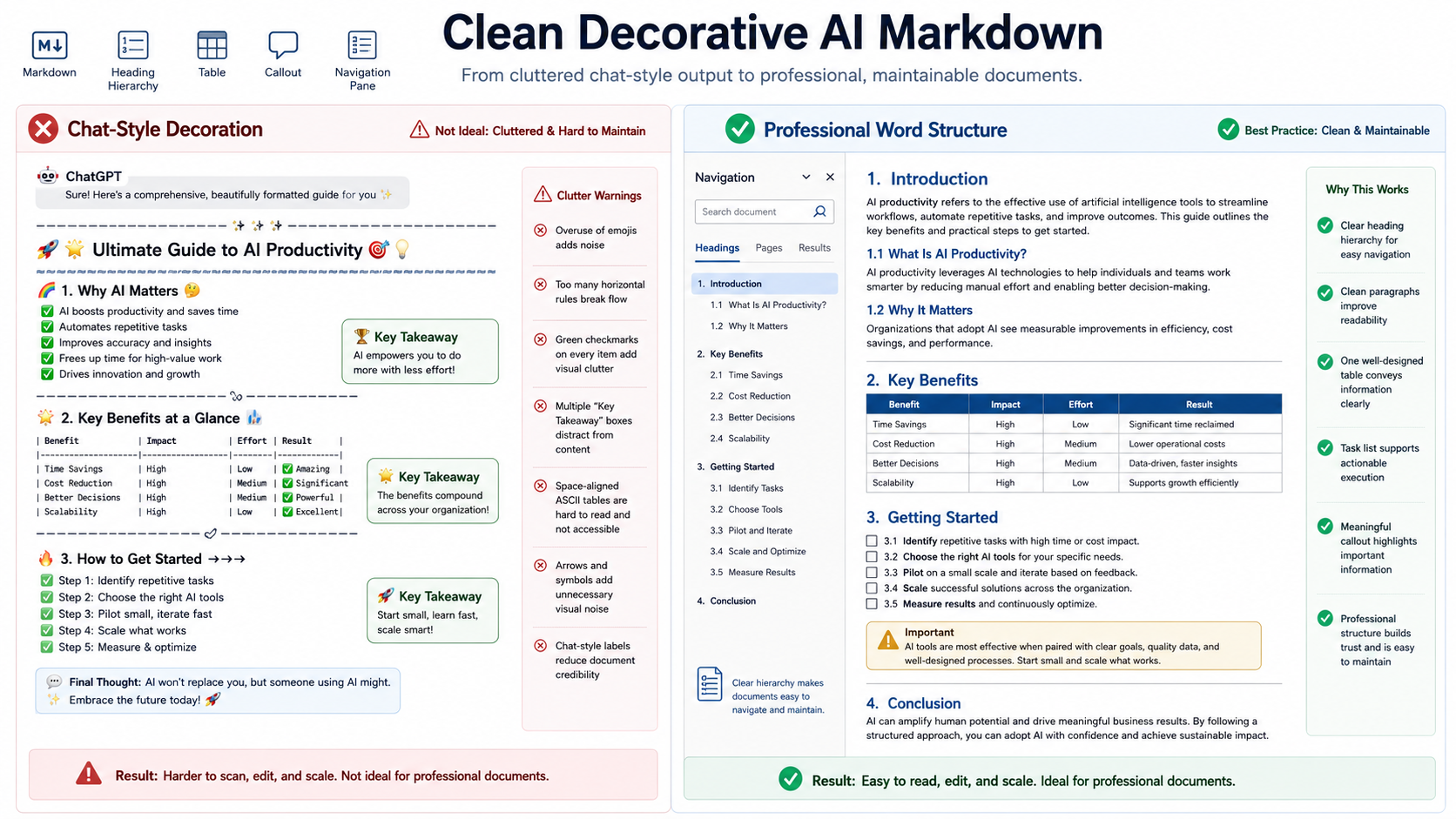
Why direct copy and paste often breaks the formatting
ChatGPT can produce structured content, but the chat interface, browser clipboard, Markdown syntax, and Word document model are not the same thing. During a direct paste, some elements may be converted visually while others are reduced to plain text.
Common problems include:
- Markdown heading markers such as
##appearing as ordinary text. - Pipe tables losing their columns or becoming tab-separated text.
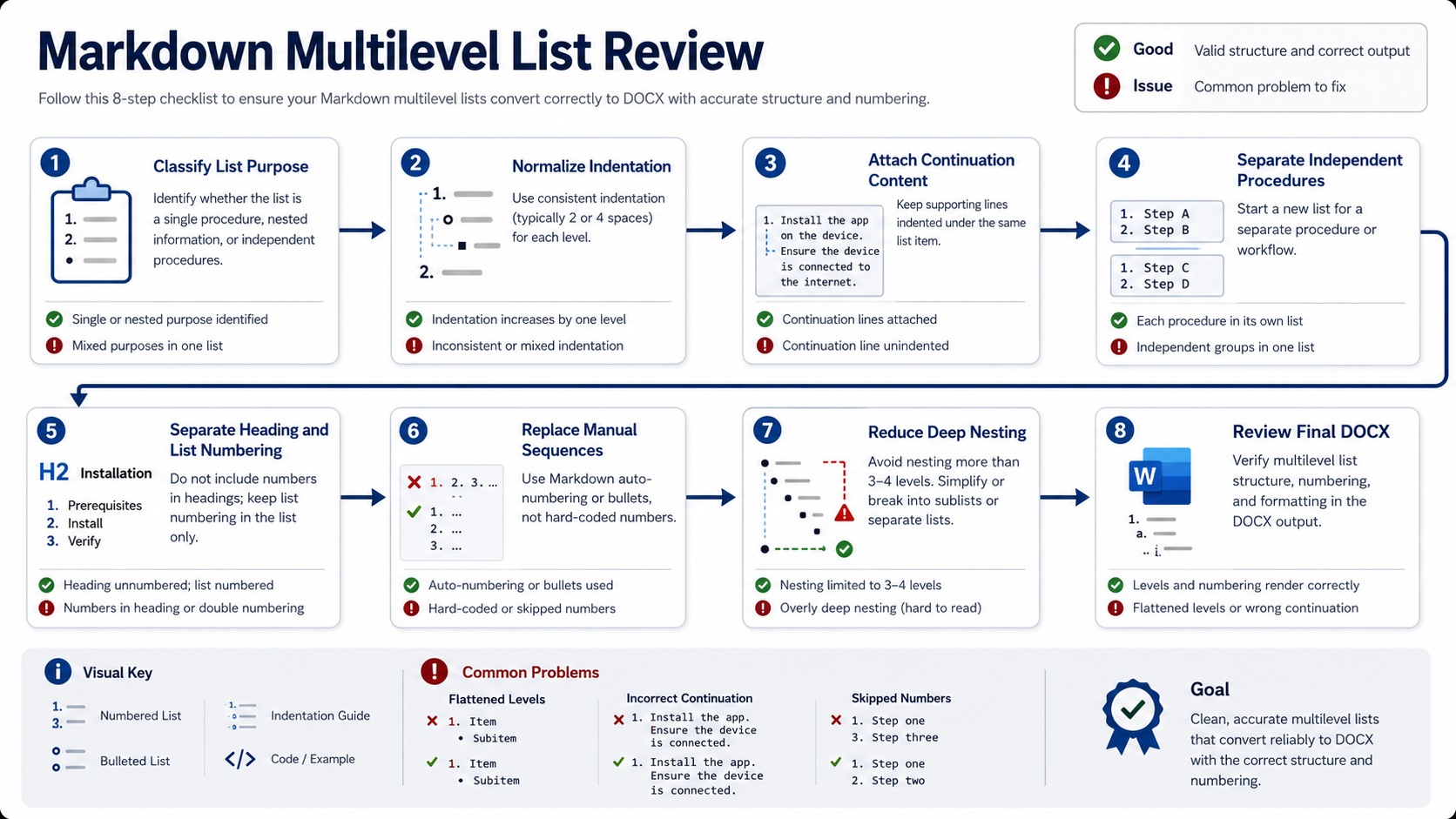
- Nested lists losing indentation or numbering.
- Code blocks switching to the document’s normal paragraph style.
- LaTeX-style formulas remaining as raw source text.
- Local images disappearing because Word cannot access the original file path.
- Long documents losing a usable heading hierarchy for navigation and a table of contents.
The purpose of a Markdown-to-Word conversion workflow is therefore not merely to move text. It is to map Markdown structures to appropriate Word elements such as heading styles, native tables, lists, captions, equations, code styles, and document sections.
Step 1: Ask ChatGPT to produce cleaner Markdown
The quality of the Word document depends partly on the quality of the source. Before converting, ask ChatGPT to produce consistent Markdown instead of a mixture of Markdown, decorative Unicode characters, pseudo-tables, and informal spacing.
This prompt does not guarantee a perfect document, but it reduces avoidable cleanup. It also makes the Markdown easier to reuse in other editors and conversion tools.
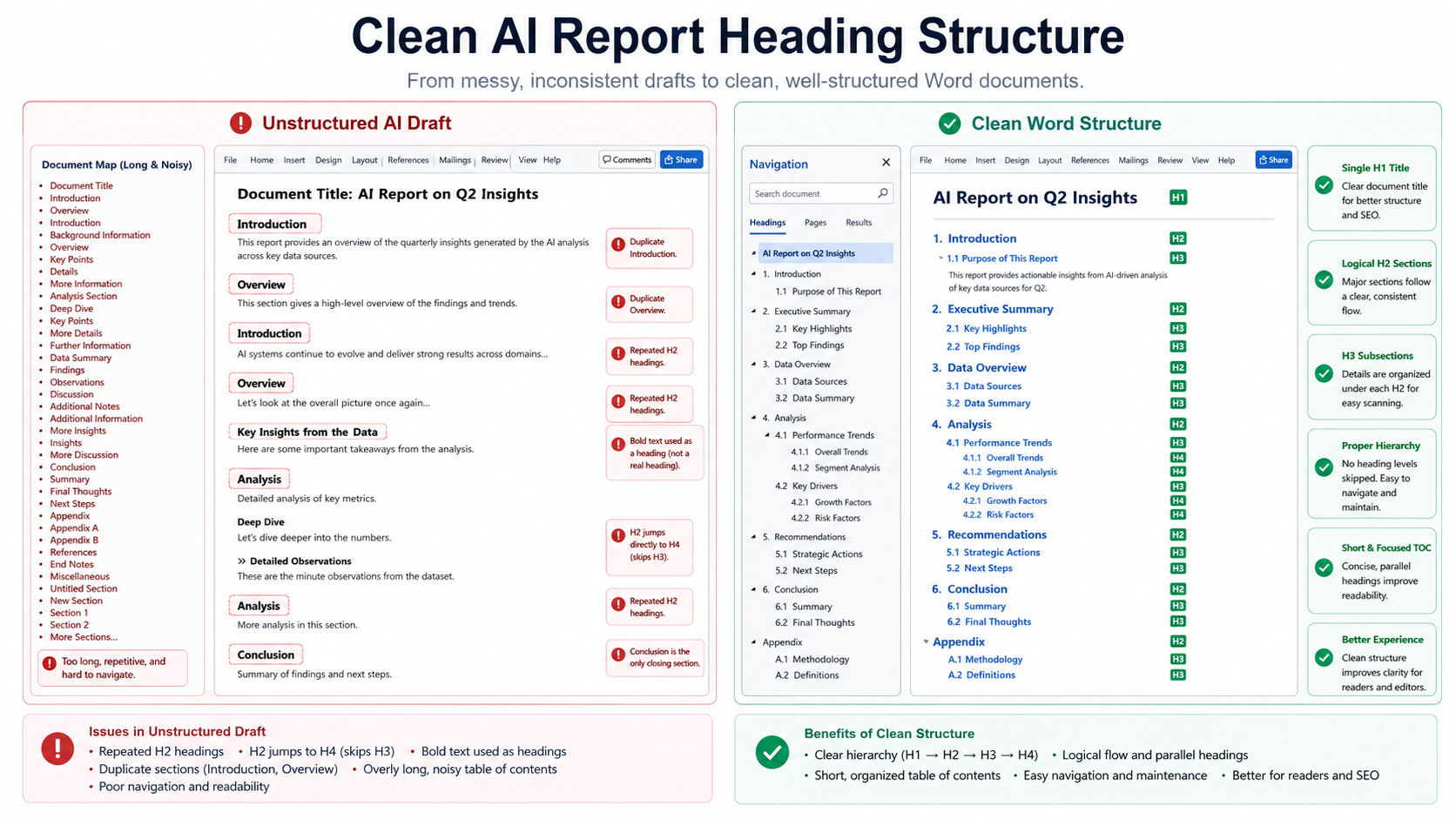
Use a clear heading hierarchy
Use one primary title and descend through the levels without unnecessary jumps:
# Project Review

## Executive Summary

## Results

### Revenue

### Risks

## Recommendations
A consistent hierarchy gives Word a better basis for Heading 1, Heading 2, and Heading 3 styles. It also makes it easier to create document navigation and a table of contents.
Prefer real Markdown tables over aligned spaces
Ask ChatGPT to use a standard table:
| Metric | Current | Target |
| --- | ---: | ---: |
| Conversion rate | 2.8% | 4.0% |
| Response time | 4.2 s | 2.0 s |
Do not rely on spaces to line up columns. Proportional fonts and Word layout rules will not preserve those spaces as a dependable table structure.
Step 2: Review the Markdown before conversion
AI-generated Markdown can still contain structural mistakes. A short review before conversion is usually faster than repairing a long Word document afterward.
| Check | What to look for | Why it matters |
|---|---|---|
| Headings | Missing spaces, skipped levels, multiple H1 titles | Affects navigation and the table of contents |
| Tables | Uneven columns, missing separator row, excessive width | May produce malformed or cramped Word tables |
| Images | Broken URLs or local files that are not included | The converter needs access to the actual image file |
| Math | Unclosed delimiters or unsupported custom commands | Invalid source can prevent correct equation rendering |
| Code | Missing closing fences or incorrect nesting | Content after the block may be formatted incorrectly |
| Facts | Unsupported claims, invented citations, stale numbers | Formatting does not verify factual accuracy |
Important
A Word converter can preserve structure, but it cannot verify whether an AI-generated claim, quotation, statistic, or citation is correct. Review the factual content separately before publishing or delivering the document.

Step 3: Convert the Markdown with DocuCraftBox
Once the source is ready, open the
DocuCraftBox Markdown to Word converter
.
You can paste the Markdown directly, upload a Markdown file, or upload a ZIP package containing the Markdown document and its local images.
- Paste or upload the Markdown. Use a ZIP package when the document references local image files.
- Choose a Word template. Select the template according to the document’s purpose.
- Enable the relevant options. For example, include a table of contents, numbered headings, math formatting, Mermaid diagrams, or captions when the source needs them.
- Start the conversion. Wait for the task to finish rather than submitting the same document repeatedly.
- Download the DOCX promptly. Generated files are temporary and are removed automatically after the applicable retention period.
Which Word template should you choose?
| Template | Best for |
|---|---|
| Clean Office | Meeting notes, AI drafts, checklists, internal summaries, and everyday documents |
| Academic | Research notes, formulas, footnotes, quotations, references, and structured papers |
| Business Report | Executive summaries, KPI tables, risk analysis, timelines, SWOT sections, and client reports |
| Technical Documentation | API documentation, code, commands, configuration, file trees, diagrams, and engineering specifications |
The template does more than change fonts. It affects headings, paragraph spacing, tables, code, captions, headers, footers, and page layout. Review the
Word template options
before converting a document intended for formal delivery.
What formatting can usually remain editable?
Supported text structures should remain editable whenever Word has an appropriate native representation. This generally includes headings, paragraphs, lists, tables, footnotes, references, and many formulas.
Some visual elements are inserted as images rather than native editable shapes:
- Mermaid diagrams are rendered and embedded as pictures.
- Ordinary PNG, JPEG, WebP, or SVG source images are inserted as document images.
- Complex visual layouts may require final resizing or repositioning in Word.
Font metrics, pagination, line wrapping, and spacing can also vary between Microsoft Word, WPS Office, operating systems, and installed fonts. “Editable DOCX” does not mean every recipient will see exactly the same line and page breaks.
Step 4: Review the DOCX before delivery
The final review is part of the conversion workflow, especially when the document will be submitted to a client, teacher, editor, manager, or regulatory reviewer.
DOCX review checklist
- Confirm that heading levels appear correctly in Word’s Navigation Pane.
- Update the table of contents if the document includes one.
- Check wide and nested tables for clipped columns or crowded text.
- Inspect long equations, matrices, and custom math commands.
- Confirm that all local and remote images are present.
- Review diagram labels at normal reading size.
- Check page breaks, blank pages, headers, footers, and page numbers.
- Verify quotations, references, URLs, names, numbers, and factual claims.
- Open the file in the same Word or WPS version used by the intended recipient when possible.

Common problems and practical fixes
The table is too wide
Reduce the number of columns, shorten cell content, split the table, or place the relevant section on a landscape page. Very wide AI-generated comparison tables are rarely easy to read in portrait Word pages.
A local image is missing
Make sure the image file is included in the ZIP package and that the Markdown uses a relative path that matches the file’s actual location and capitalization.
A formula remains as source text
Check whether the formula delimiters are closed correctly. Simplify unsupported custom macros and test the problematic formula separately before converting the complete document again.
The Mermaid diagram fails
Validate the Mermaid source, remove unsafe or unavailable external content, and reduce unnecessary complexity. A failed diagram should be corrected at the source instead of replaced with an incomplete image.
The document looks different in WPS
Word-processing applications do not always calculate fonts, spacing, fields, and pagination identically. Use common fonts, avoid overly fragile layouts, and perform the final check in the application used by the recipient.
Frequently asked questions
Can I export a ChatGPT response directly to Word?
You can copy and paste simple responses, but structured conversion is more reliable for headings, tables, lists, formulas, code, images, captions, and long-document navigation.
Does converting to DOCX verify the AI-generated content?
No. Conversion changes the document format and layout. It does not verify claims, citations, calculations, quotations, or copyright permissions.
Can the converted Word document still be edited?
Supported headings, paragraphs, lists, tables, footnotes, references, and many equations remain editable. Images and Mermaid diagrams are embedded as pictures.
Do I need an account?
The current DocuCraftBox version does not require an account. Uploaded and generated files are temporary, so completed documents should be downloaded promptly.
Final recommendation
For a short answer with no tables or special formatting, ordinary copy and paste may be enough. For reports, research notes, business documents, technical specifications, or other deliverables, keep the ChatGPT output in clean Markdown and convert the structure into a real DOCX.
The most dependable workflow is simple: improve the source, convert it with an appropriate template, and review the result in Word before delivery.
Editorial note: Product capabilities and retention periods may change as DocuCraftBox is updated. Review the current converter page and privacy policy for the latest operational details.
Choosing the final file
Keep DOCX when the document still needs editing. Choose the PDF workspace when the page layout is ready for sharing or printing. Review the selected output for fonts, pagination, tables, images, and other complex elements before delivery.