Which Word Template Should You Use for Markdown? Academic, Business, Technical, and Office Compared
The same Markdown source can produce noticeably different Word documents depending on the selected template. Heading spacing, page breaks, table borders, code styling, captions, headers, footers, and even the apparent length of the document may change while the actual content remains identical.
This is not necessarily a conversion error. A Word template controls presentation and layout rules. The right choice matches those rules to the audience, reading pattern, and delivery requirement instead of choosing the most decorative preview.
 One Markdown source can produce different page rhythm and component styling under different templates.
What a Word template actually changes
A template does more than change the title font. It can define heading sizes and spacing, body typography, page margins, headers and footers, table borders, caption placement, code-block treatment, formula spacing, table-of-contents formatting, and page-break behavior.
The Markdown source supplies structure. The template decides how that structure appears on a Word page.
Choose by the reader’s task
| Template | Primary task | Typical document |
|---|---|---|
| Clean Office | Read, revise, and share quickly | Meeting notes, internal summaries, checklists, general AI drafts |
| Academic | Evaluate argument, evidence, and references | Research papers, literature reviews, course reports |
| Business Report | Identify findings and make decisions | Executive reports, proposals, KPI reviews, risk reports |
| Technical Documentation | Follow procedures and inspect technical detail | API guides, deployment instructions, configuration manuals |
When Clean Office is the safer choice
Clean Office suits documents that need neutral formatting and continued editing. Use it for internal drafts, meeting notes, action lists, short summaries, AI-generated first drafts, or content that will later be moved into an organization’s own template.
When Academic is appropriate
Academic documents often contain hierarchical headings, long reading sequences, quotations, equations, footnotes, citations, and reference lists. Choose this template when the source follows a research structure or requires consistent treatment of evidence, captions, and references.
A template cannot verify whether a citation is correct or whether a conclusion is supported. It only creates a consistent presentation framework.
When Business Report works better
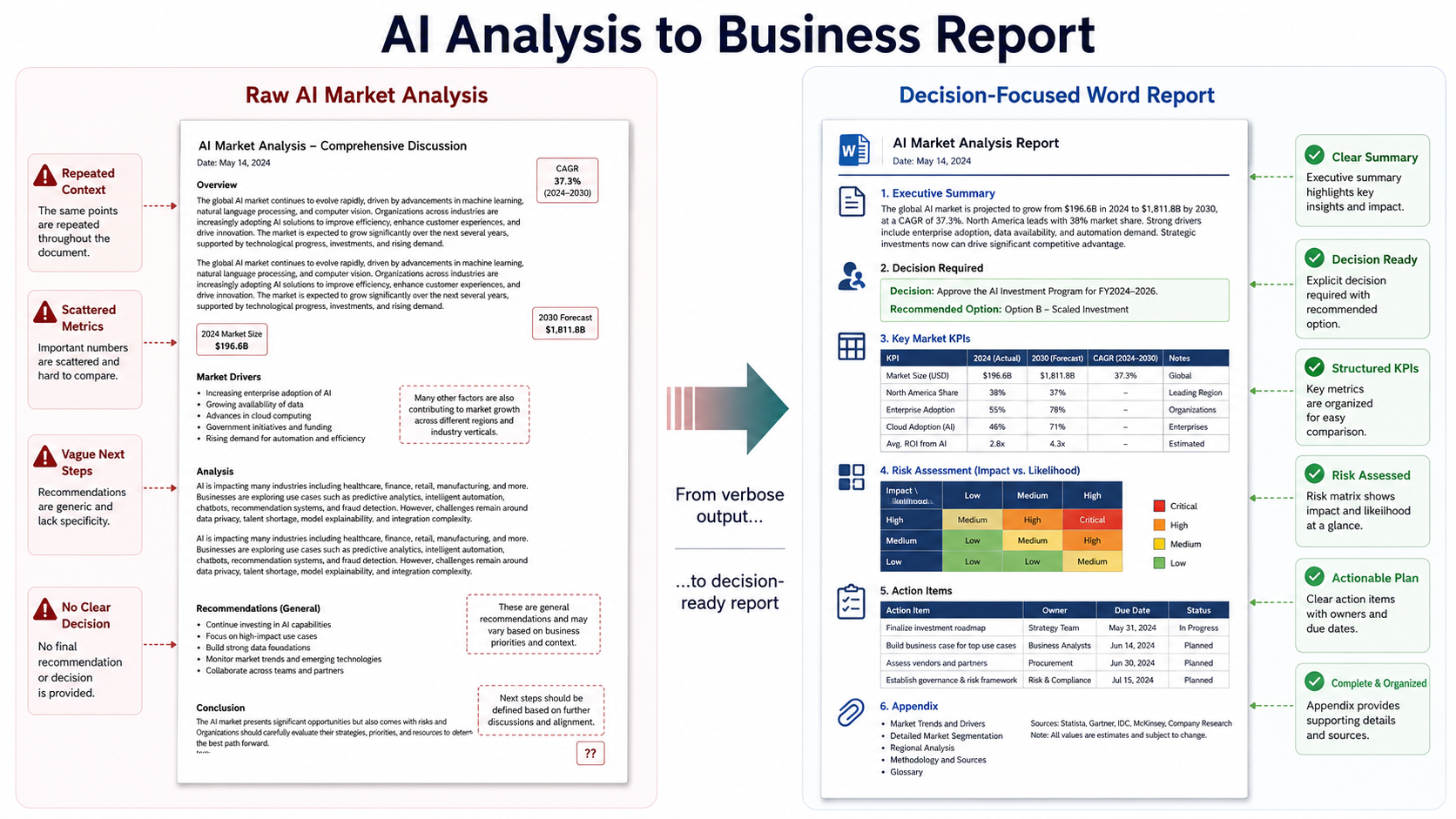
Business reports usually place conclusions, decisions, risks, or recommendations before supporting detail. They often contain executive summaries, KPI tables, project status sections, risk registers, client recommendations, roadmaps, and decision comparisons.
Do not choose a business template merely because the document contains tables. The defining question is whether the reader needs to identify findings and decisions quickly.
 Academic, business, and technical documents organize attention differently even when they share headings and tables.
When Technical Documentation is the right fit
Technical documentation must preserve literal values and make procedures easy to follow. It is appropriate for installation guides, APIs, configuration references, engineering specifications, troubleshooting procedures, and documents dominated by code, logs, commands, file trees, or diagrams.
A technical template should improve accuracy and navigation. It should not make a short management summary look like a software manual.
Why the same Markdown changes page count
Identical content can produce different page counts because templates use different fonts, font metrics, line spacing, paragraph spacing, heading spacing, margins, table padding, caption rules, and heading pagination.
More pages are not automatically worse. Extra space may prevent crowded tables, isolated headings, and dense paragraphs.
A template cannot repair weak Markdown
| Source problem | Why styling cannot solve it |
|---|---|
| Skipped heading levels | The intended hierarchy remains unclear |
| Overloaded tables | A template cannot create more usable page width |
| Broken image paths | The image file still cannot be found |
| Unmatched citation keys | The bibliography record is still missing |
| Long unbroken code lines | A smaller font hides rather than fixes the issue |
Test with representative content
Do not compare templates using only a title page. Build a short sample with H1-H3 headings, normal and long paragraphs, a narrow and wide table, one image with a caption, one formula, one code block, and any footnotes or citations used in the final document.
Convert the same sample with two plausible templates. This exposes real differences without repeatedly converting the entire document.
Avoid mixing template logic manually
Changing individual headings, tables, and captions one by one can break consistency. Modify Word styles instead of formatting each paragraph separately. Keep headings tied to Heading 1, Heading 2, and Heading 3, and use one caption and code style throughout the document.
A practical selection workflow
- Identify the reader. Determine who will read, approve, or edit the document.
- Identify the primary task. Decide whether the reader must study evidence, make a decision, follow a procedure, or continue editing.
- List dominant elements. Note whether prose, references, KPI tables, code, formulas, or diagrams drive the document.
- Select two plausible templates. Compare only options that fit the task.
- Convert a representative sample. Include the most difficult layout elements.
- Compare readability and pagination. Check headings, tables, captions, code, formulas, and navigation.
- Convert the full document. Keep one template system.
- Review the final DOCX. Check it in the recipient’s Word or WPS environment where relevant.
 Choose by reader, task, dominant content, and a representative conversion test.
Final DOCX review checklist
- Confirm that the template matches the audience and purpose.
- Check H1-H3 hierarchy in Word’s Navigation Pane.
- Review margins, headers, footers, and page numbers.
- Check wide tables, equations, code lines, and captions.
- Look for isolated headings and unexpected blank pages.
- Update the table of contents and fields where required.
- Confirm that body text remains comfortable to read.
- Open the document in the recipient’s editing environment when possible.
Frequently asked questions
Why does the same Markdown have a different page count in each template?
Templates use different fonts, spacing, margins, caption rules, and heading pagination.
Which template is best for an AI-generated report?
Choose by final purpose: Clean Office for a working draft, Business Report for decision-focused delivery, Academic for research structure, and Technical Documentation for procedure-heavy technical content.
Can a template fix broken Markdown?
No. Missing images, malformed tables, unmatched citations, invalid formulas, and weak heading structure must be corrected in the source.
Can I change the template after conversion?
You can edit Word styles, but extensive manual changes may create inconsistency. Select the intended template before full conversion when possible.
Final checklist
- The template matches the reader’s task.
- The choice was tested with representative content.
- The Markdown structure was corrected before styling.
- Heading, table, caption, code, and formula styles are consistent.
- Page count and blank pages have been reviewed.
- The table of contents and fields have been updated.
- Manual edits use Word styles rather than isolated formatting.
- The final DOCX has been checked in the intended environment.
Choosing the final file
Use DOCX when a reviewer needs to edit the template-driven report. Use PDF when the approved layout should remain fixed for a client, manager, or print workflow. Whichever output you choose, check the cover, tables, page breaks, and fonts before sending it.